

All stories Montréal, Québec
Mobile appsiPhone and Android
Take your hub along.
On the bus, I’d rather type a question than involve everyone in the conversation. In the kitchen, with flour on my hands, the microphone wins. We built both into Thalovant for iPhone and Android. Let’s connect a phone and put the kettle on.
Resume at bookmarkTime for a cup of tea
In the app, you can ask your hub for a three-minute timer. Try the Journal version right here while the kettle warms up.
0:10Ready to brew
Give the phone a hub to talk to
Open Thalovant on your phone and sign in. Your browser asks you to approve the connection. Choose the hub you want if you have more than one. Once the phone is connected, the skills you can use are the ones that hub offers. If someone has already made a setup link for this phone, you can scan its QR code in the app instead.
A look inside the apps
iPhone
 Enlarge
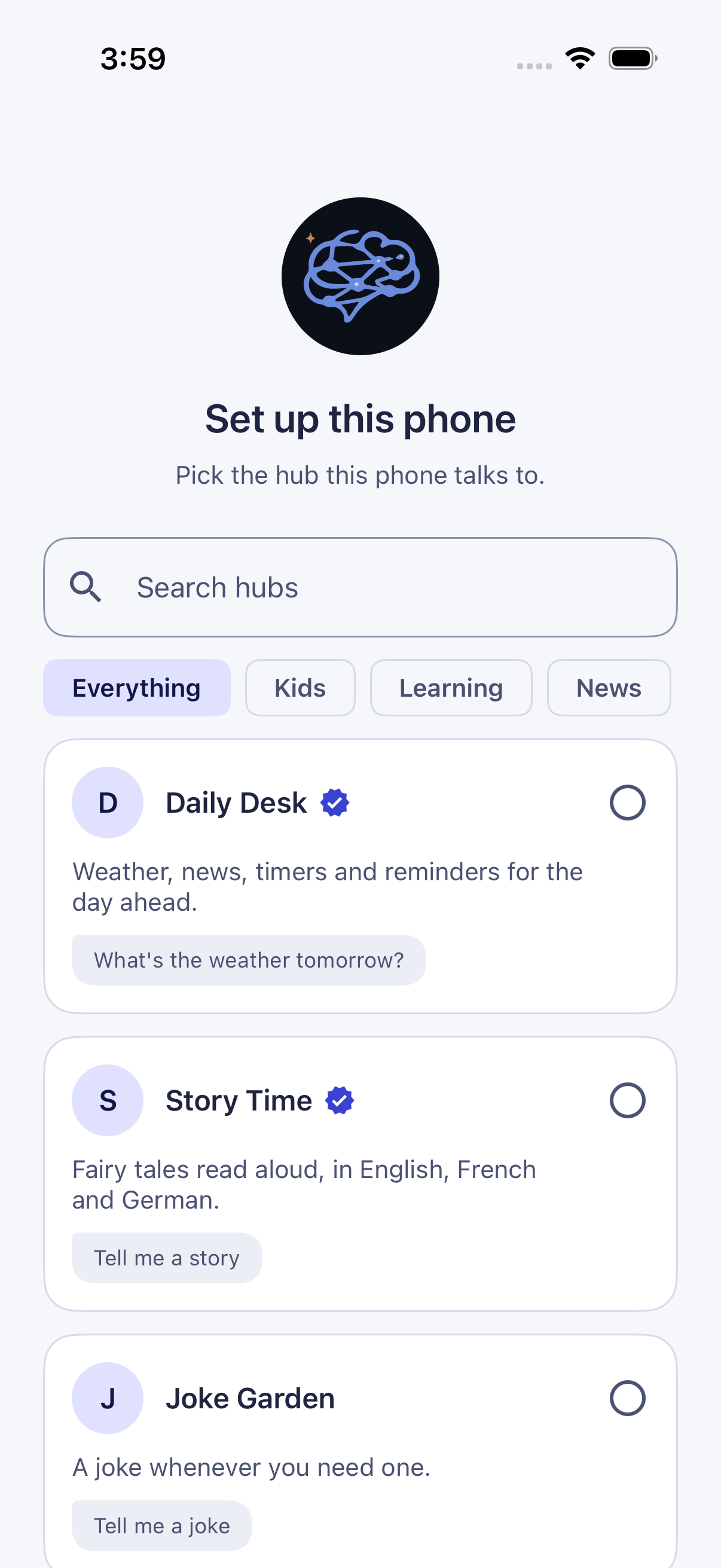
Choose which hub this phone talks to. Each listing gives you a first question to try.
App StoreAndroid
 Enlarge
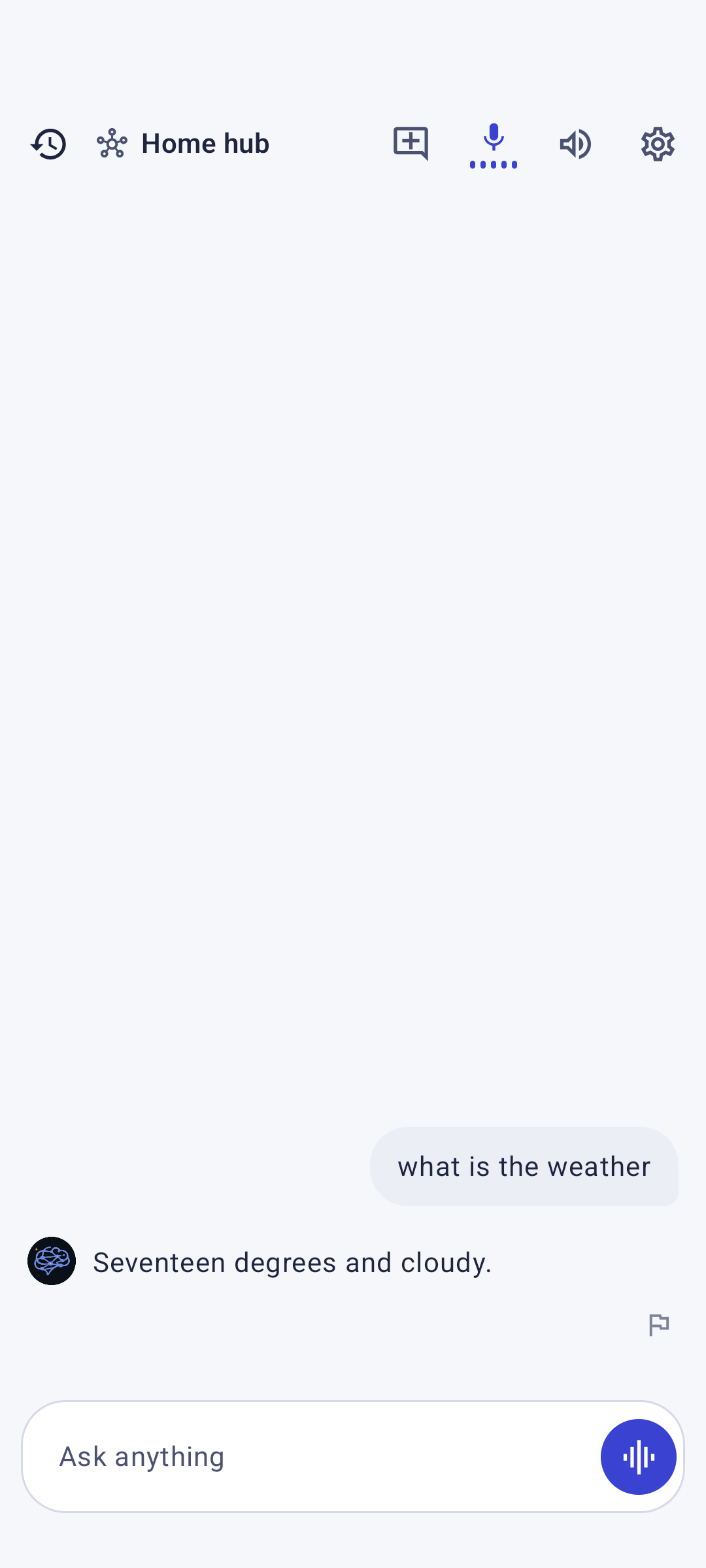
The hub’s reply stays in the conversation. Below it you can type a follow-up or tap the voice button.
Google PlayWhy ask you to pick?
Look at that iPhone setup screen for a moment. Daily Desk, Story Time and Joke Garden are three very different answers to “what should this phone do?” Choosing a hub gives the phone access to its skills. It can become a story reader without us having to ship a separate story app.
On Android, the example conversation is connected to a hub called Home. There’s a weather question, and you can read the reply as easily as a text message. That’s an example from the app. For today’s weather, ask the hub you’ve connected.
What can this particular hub do?
After pairing, open “What you can say” in the app. It lists example phrases by skill for the hub you chose. Find one you’d actually use and tap the phrase once. On a noisy bus, that’s a perfectly good way to ask. When you get home, try saying the same words to the microphone.
I like this as a first test because you change just one thing. If the tapped phrase gets a reply, you already know the phone can reach that hub and the skill understood the question. If the spoken version comes out wrong, look at the words the phone heard. You’ve got something more useful to go on than tapping the microphone a bit harder.
Try it while the tea steeps
With the timer skill on your hub, tap the microphone and ask for a three-minute timer. You can also type the request and read the confirmation on screen. The hub sets the timer, and the phone keeps a copy of its schedule. With the necessary permissions enabled, it can ring after you close the app. Getting the tea bag out is still your job.
If you have an iPhone running iOS 26 and allow alarms, lock the screen once you see the confirmation. You can follow the countdown there. On earlier supported iOS versions, the closed app delivers a notification and its sound follows the silent switch. On Android the timer rings through the alarm audio channel. Before you trust any of the three with a pot on the stove, try it once with your tea.
A shorter way in
On iPhone, you can ask your hub from Siri or use the answer in Shortcuts. On Android, add the Thalovant tile to Quick Settings. Pull down the panel and tap the tile when you want to speak. Either way, the phone sends your question to the hub you paired.
Where the words go
If you turn on hands-free listening, the phone listens for the wake word locally. For the question itself, the app uses the phone’s speech recognition. It can run on the device when your phone supports it for that language. Otherwise the speech provider may process the audio online. Your Thalovant hub receives the words as text. Typing skips speech recognition altogether.